

- Home
- Campus
- Leaderboards and progress
- Learning Pathways
Learning Pathways
Accessing the learning pathways
A learning pathway is a set of courses meant to be played together to build knowledge progressively since normally the courses involved are interrelated or share a common topic.
To access a learning pathway, follow these steps:
- Enter the Campus or the Gamelearn website from your platform.
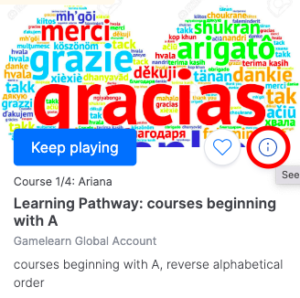
- Find the pathway card you want to access in the "Home" section.
- Click the "Play" or "Keep playing" button that appears on the card when you mouse over.
Viewing learning pathways
From the "My learning pathways" section* of your Campus, you’ll be able to see the itineraries assigned to you.
In each of them, you can see the following information:
- The start date.
- The expiration date, if you've already started the learning pathway.
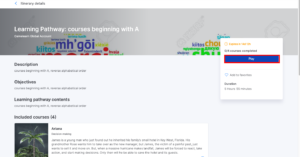
Courses included in your learning pathway
To see which courses are part of your pathway, follow these steps:
- Log onto the Campus.
- Click on "My progress."
- Click on "Learning pathways."
- Click "See more" on the pathway card.
From here, you can also check the progress of your pathway: which courses you’ve started and which ones you still need to complete.
Note: the courses must be taken in the established order, and you won’t be able to start the next course until you finish the current one.
Important: If you have already started or completed a course that is part of your assigned learning path, your progress will not count toward the path. To have it recorded correctly, you'll need to complete the course again from within the learning path, even if you've already finished it.
Progress of your learning pathways
From the "Learning pathways" area on your Campus, you can see your progress for the entire pathway as well as for each individual course. To do so, follow these steps:
- Log onto the Campus.
- Click on "My Progress" at the top.
- Select "Learning pathways."
- Click on "View more". From there, you can view the individual ranking of each course within the learning pathway by clicking the "View Progress" button in the course section.
Diploma and documentation for your learning pathway
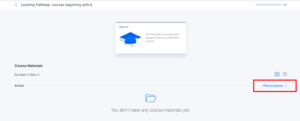
To access downloadable materials for the course, follow these steps:
- Log onto the Campus.
- Click on "My Progress" at the top.
- Click on "Learning pathways."
- Click "See more" on your pathway card.
From here you can see and download the following:
- The diploma for your pathway (if enabled).
You will not be able to download your diploma until the learning pathway is complete.
- The quick start guide for your pathway (if enabled).
- Documents from each of the courses that make up the pathway.
Additional information: you will also be able to see individual diplomas from the courses in the itinerary if they are enabled. To do this, click on "See progress" next to each course in the learning pathway.