


- Home
- Campus
- Access and account
- Recovering and/or changing a password
Recovering and/or changing a password
Recovering a password
Prerequisites
Have an active account.
Steps
If you forgot your password, you can recover it from the Campus home page. To do so, follow these steps:
- Log onto the Campus.
- Enter your email and click "Forgot your password?".
- Enter the email you registered with and click "Continue."
|
Note: You'll receive an email to the address you gave with instructions for resetting your password. |
Changing a password
If you need to, you can also change or modify your password at any time from the Campus. To do so, follow these steps:
- Log onto the Campus.
- Click on your initial at the top right and click on "My profile."
- Click on the little pencil to edit your Password.
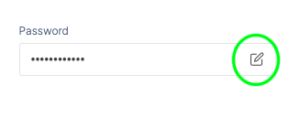
- Change your password.
- Click “Update” to save the changes.
Additional information
Remember that the password you set must contain the following:
- 8 characters
- 1 capital letter
- 1 number
- 1 special character