


- Home
- Campus
- General & Tech
- Favoriting courses on the Campus
Favoriting courses on the Campus
You can tag your favorite courses on the Campus and group them into your “Favorites” section for quicker access. There are two ways to do this.
The first:
- Log onto the Campus.
- Find the course you want to favorite.
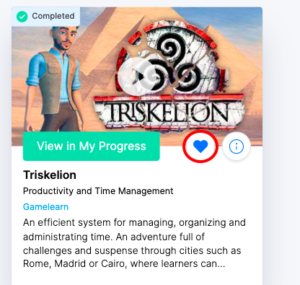
- Click on the blue heart you see on the course card to add it to your “Favorites.”
The second:
- Log onto the Campus.
- Find the course you want to bookmark.
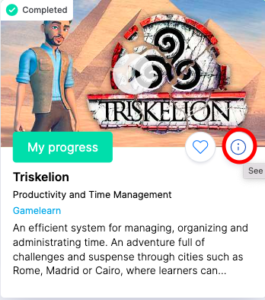
- Open the course information by clicking on the little "i" on the game card.
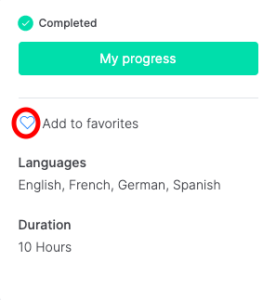
- To add the course to your "Favorites," click on the blue heart you see on the right side of the screen by the other course information.
|
Note: to remove a course from your favorites, simply uncheck the heart. Remember, once you complete a course you have favorited, it will continue to appear in your "Favorites." |