


Checking the language availability for each course #
You will find the languages available for each course within the campus. Here’s how:
-
Log onto the Campus.
-
Find the course you want to check.
-
Open the course information by clicking on the little “i” on the game card.
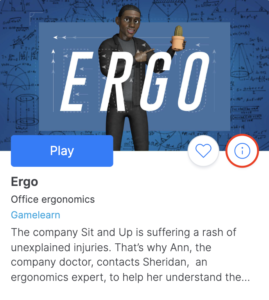
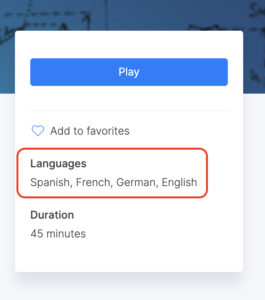
On the right side, you will find all the details about the languages available and the duration of the game.
Selecting the course language before starting #
To choose the course language before you begin, follow these steps:
-
Log onto the Campus.
-
Find the course you want to take.
- Click on the “Play” button if it is enabled.
- Select your preferred language.
- Click again on “Play”.
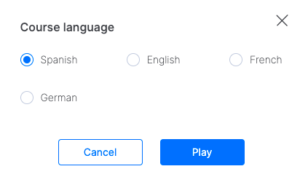
Our courses are available in several languages. If you don’t find the one you’re looking for, it means that the course isn’t yet available in that version. In that case, you can take it in any of the languages shown when you start the course.
Changing the course language after starting #
If you need to change the language of the course once you’ve started, follow these steps:
- Click on the “Main Menu” button at the bottom right of the game screen.
- Click on “Settings.”
- Select the “Languages” option.
- Select your preferred language.
- Click on the ‘Accept’ button.
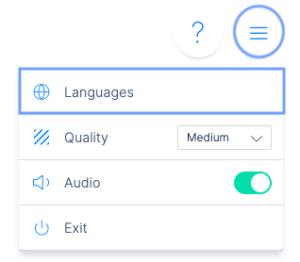
Note: if you have already started the course and you are at the beginning of the tutorial, you will not be able to change the language until the tutorial is completed. If this is the case but you still wish to change the language, we recommend that you contact us directly through our form so that we can help you.
Please note that you can only switch to languages that are currently available inside the games.
Finally, remember that these steps do not apply to the 2100, Triskelion, Merchants, and Pacific courses. For more information, please refer to the corresponding articles: 2100, Triskelion, Merchants, and Pacific.